
rptView Installation & Start
Everything on this page relates to the latest release, though much of it will still be relevant to earlier releases.
Installation
Installation is as simple as can be. After download, run the installer as administrator.
There are two stages to the install. First, you’ll be asked to install the SAP Crystal Reports runtime. You’ll need to accept the licence agreement from SAP.
Once that’s complete, the main rptView installer will run. Just click next, nothing much to do.
First Run
This is the bit that changed in the 2026 release.
You’ll first be prompted to set the database location:

This is the location where rptView’s internal database will be stored, nothing to do with the database your reports access.
If you’re upgrading from a previous release, you can continue to use your old database by keeping the default.
For a new install, you can select a different folder. If you want to use a network folder, either map a drive or type the UNC path into the box.
If you expect multiple users to use the same database, check the ‘Multiple Users’ box. This disables report snapshots as they’re not currently supported for multiple users. If you use a UNC path, this will automatically be set behind the scenes.
Click Next:

Now select the location where your report files are stored. If you’re sharing the database with multiple users, this should be a location available to all users (ideally a UNC path).
Finally, click ‘Run rptView’.
It’s now reading the information from your report files. If you have many reports, this may take a while.
The Main Application
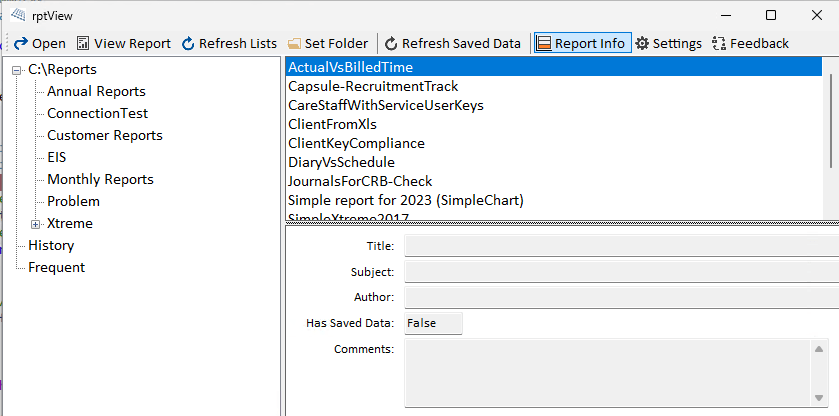
The Main Panels
The panel on the left starting ‘C:\Reports’ is the list of the folders below your report folder. Select a folder to view a list of reports in that folder.
The ‘History’ and ‘Frequent’ sections will become populated as you view reports.
The panel on the right is a list of the reports in the current folder. The currently selected report is highlighted in blue.
The panel below that contains information about that report from the report’s design.
Toolbar
- Open Select this to browse to a report that’s not in your current folder structure.
- View Report View the currently selected report.
- Refresh Lists Refresh the list of reports in all the folders. Useful if a report has been added since rptView started.
- Set Folder Set the root folder for your reports.
- Refresh Saved Data Reports can be saved ‘with saved data’. If this option is turned off, any reports that contain saved data will be viewed with that data rather than being refreshed.
- Report Info Toggles the bottom panel that contains the report information.
- Snapshots (not shown) If a report has saved snapshots, this toggles the list of snapshots on and off.
- Settings See below
- Feedback Send me an email.
Settings
Settings is split across 3 tabs:
- Databases This is the most important section. It includes all the database information read from your existing Crystal Reports:
- Server For an ODBC connection, this will be the name of the DSN in ODBC Administrator. For other connection types it will be the server name of the database or file location.
- IsDefault This can only be set for one location. It means that if a connection isn’t set, the username and password from this server will be used. Useful if you have multiple databases with the same username and password.
- IsSet Just whether or not the password has been set and will be used. If it’s not set, the user will be prompted when they view a report containing this connection.
- Username & Password The user name and password to be used. The password is encrypted before being stored in the rptView database.
- Trusted Some databases allow a connection to be made without username and password. Typically, they reuse your existing Windows login. Mostly for Microsoft SQL Server.
- SMTP You can send report output by email using the rptView command line. This is where you set all the information about your SMTP server.
- Command Line Nothing to set, just a list of instructions on how you use the command line of rptView.
The Viewer
Most of the view is just the standard Crystal Reports viewer. These are the changes:
- Email PDF Exports the current report as a pdf and sends to email using Outlook. If Outlook isn’t installed, you’ll just see an error.
- Export to TXT Crystal Reports can export to text files but that option doesn’t normally exist in the viewer. This exports the file to text and opens the file in Notepad (or your default txt viewer).
- Take a Snapshot Saves the report, with data. It will now appear in the list of snapshots in the main application.